How To Enable Cookies
The following describes how to enable Cookies for several popular browsers. Other browsers should feature similar options.What Is a Cookie?
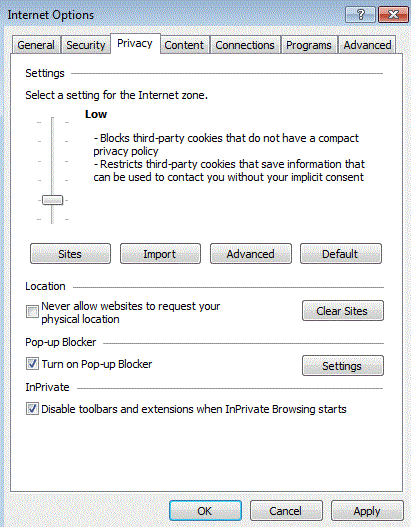
Internet Explorer 7 and beyond
- Open Internet Explorer by clicking the Start button and then clicking Internet Explorer.
- Click the Tools button, and then click Internet Options.
- Click the Privacy tab, and then, under Settings, move the slider down to allow cookies, and then click OK.
Google Chrome
- Click the Chrome menu icon
 .
. - Select Settings.
- Near the bottom of the page, click Show advanced settings.
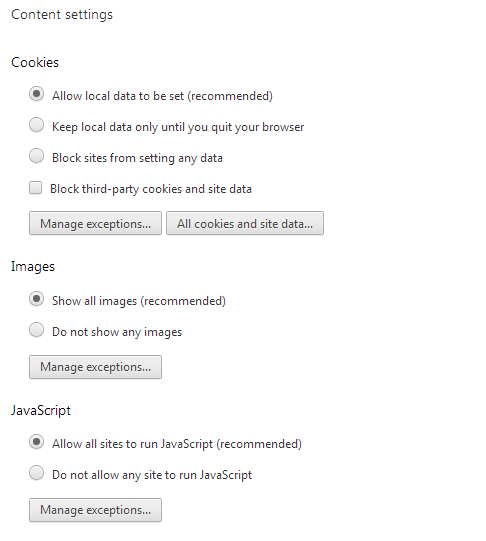
- In the "Privacy" section, click Content settings.
- Enable or disable cookies:
- To enable cookies, select Allow local data to be set (recommended).
- To disable cookies, select Block sites from setting any data.
- Click Done to save.
Firefox
Note: Cookies are enabled by default in Firefox.- Click the menu button
 and choose Options.
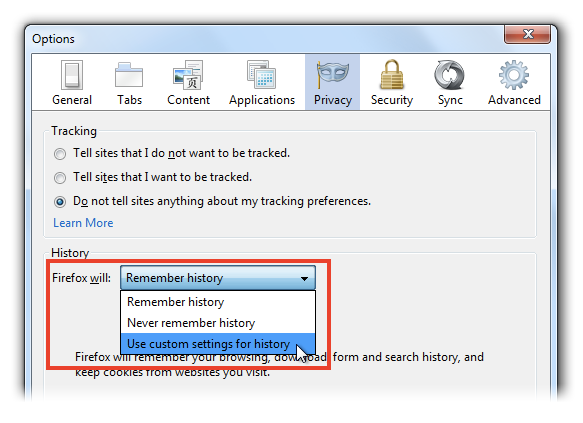
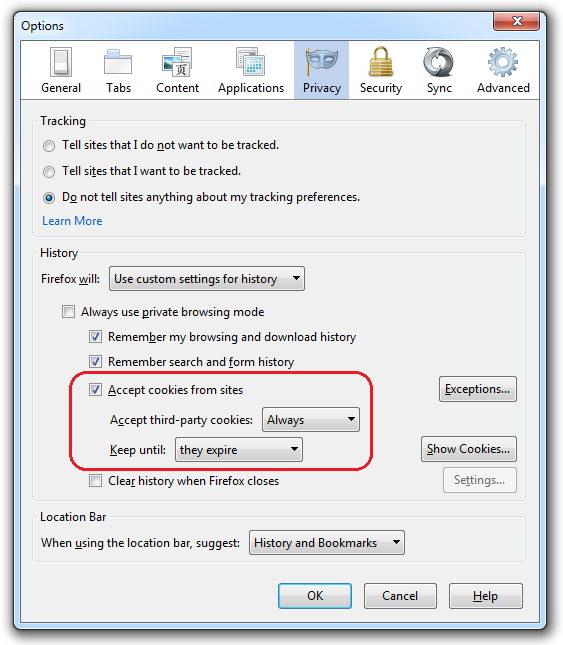
 - Select the Privacy panel.
- Set Firefox will: to Use custom settings for history.
- Check mark Accept cookies from sites to enable Cookies, and uncheck it to disable them.
- Choose how long cookies are allowed to be stored:
- Keep until: they expire: Each cookie will be removed when it reaches its expiration date, which is set by the site that sent the cookie.
- Keep until: I close Firefox: The cookies that are stored on your computer will be removed when Firefox is closed.
- Keep until: ask me every time: Displays an alert every time a website tries to send a cookie, and asks you whether or not you want to store it.
- Click OK to close the Options window.
Internet Explorer 6
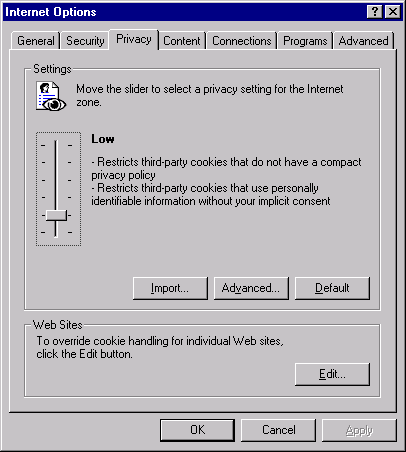
- From the browser's Tools menu, click Internet Options.
- Click the Privacy tab, move the slider down to Medium or a lower setting, and then click OK.
Note: You can also override automatic cookie settings or customize privacy settings for an individual Web site. For more information about privacy settings and cookies, refer to the Internet Explorer Help.
Internet Explorer 5
- From the browser's Tools menu, click Internet Options.
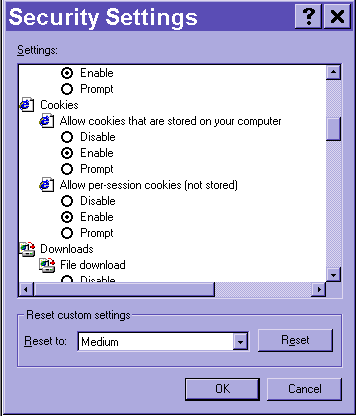
- Click the Security tab.
- Select the Internet zone, and then click Custom Level.
- Scroll down to the Cookies section.
- For Allow cookies that are stored on your computer, optionally, select Enable.
- For Allow per-session cookies, select Enable, and then click OK.